Prepare the Event
Start with an event name. Add music from your library or upload a track, then arrange the items in the order you want to run them.
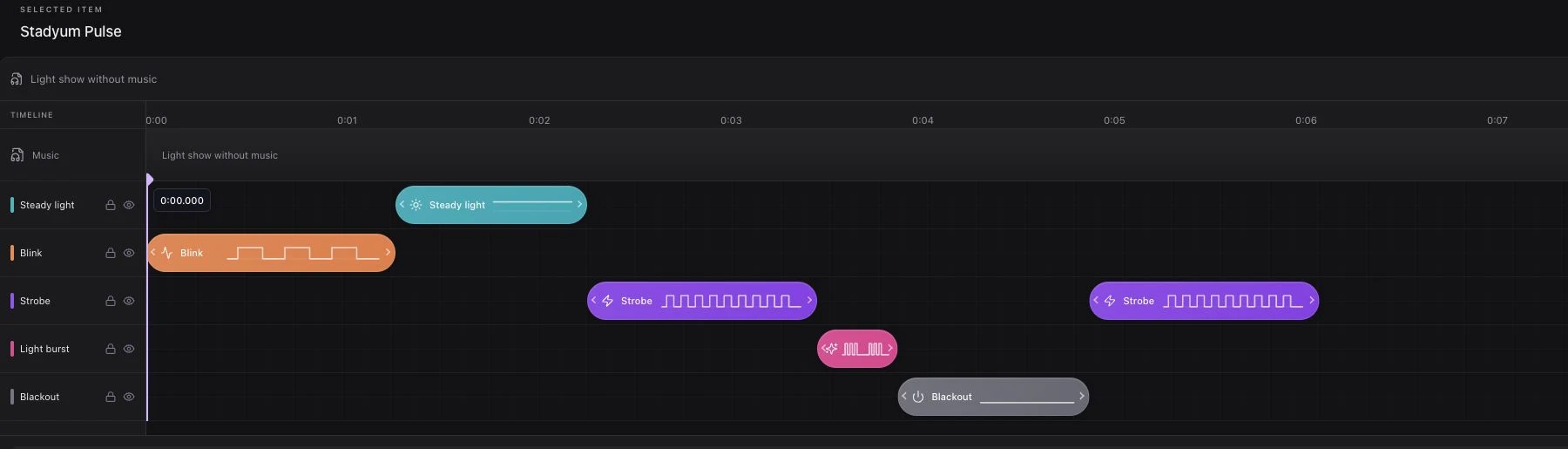
Open the event in Studio to edit light effects and phone-screen colors. Save status is visible, so the operator can check that preparation is complete before playback. Use the event platform overview for a tour of the workspace.
Invite the Audience
- Open the event's invitation screen.
- Choose a QR presentation that suits the venue display.
- Show the QR code with a short instruction, such as “Scan and join the show.”
- Guests scan with their phone camera and open the mobile page.
- Guests tap Join to prepare for the show.
- The operator checks connected and ready participant counts.
The account uses a stable QR invitation. A guest can prepare before the live session begins without scanning again when it opens.
Understand the Two Light Sources
Phone Flashlight
On supported devices and browsers, the rear flashlight produces white light. Access may require camera permission. Luma Crowd requests that permission when a guest joins, rather than when the page first opens.
Phone Screen
The screen supplies colored light and a fallback when flashlight access is unavailable. Browser behavior, display brightness, ambient light, and how guests hold their phones affect the result.
Screen light is especially important when a device does not expose flashlight control to the browser. Read security and permissions for the guest-facing explanation.
Run the Live Session
| Control | What it does |
|---|---|
| Preview | Plays locally for the operator |
| Go live | Opens the live session without starting lights |
| Play | Starts the selected item or prepared event flow |
| Stop | Stops audio, lights, and pending items; the session stays open |
| End event | Closes the session and returns guests to waiting |
Only one event can be live in an account at a time. Your team can prepare another event while the current session is open.
Refreshing the operator page shows the live session again, but does not automatically restart its music or show. A playback run uses the flow as it was when that run started; later edits apply to a later playback.
Rehearse the Complete Journey
Check the QR code from actual audience positions, not just beside the operator's laptop. Include phones with different browsers, test screen fallback, and confirm the venue network with the relevant production team.
Rehearse the invitation, the stage cue, Stop, and End event together. A strong production plan includes a clear owner for each control and an alternative if the audience network is unavailable.
Choose a Moment That Fits
A player entrance, concert finale, festival closing, or launch countdown gives guests a clear reason to participate. Start with one understandable moment, then expand the flow after reviewing the rehearsal.
Request a demo to see the complete journey from event creation to a waiting audience after the session ends.