A ballpark phone light show needs a different plan from an indoor arena cue. The available light can change between the first pitch and the final out, and a game does not deliver every presentation window on a fixed schedule. Start with a moment the venue can actually host, then build a short audience action around it.
For US baseball presentation teams, that moment might be a night-game welcome, an approved theme-night break, or a postgame finale. The same practical questions apply: can fans see and scan the invitation, can they reach the ready screen, and who gives the operator the start and stop cues?
Choose the window after checking the conditions
Screen colors and phone lights appear differently in daylight, dusk, and darkness. Visit representative seats under the conditions planned for the activation. Check both the view from the stands and the camera angle intended to show the audience.
Do not assume that a design reviewed on a laptop will create the same visual effect in an open ballpark. Start with a small set of recognizable colors and a clear hold. Add movement only when the rehearsal shows that it reads well from the relevant viewing positions.
A postgame program can offer a more deliberate handoff than a short inning break, but it has its own audience movement and production needs. Confirm the window with the venue team. Keep a simple alternate plan if the planned cue is delayed or removed.
Give the QR code a dedicated invitation
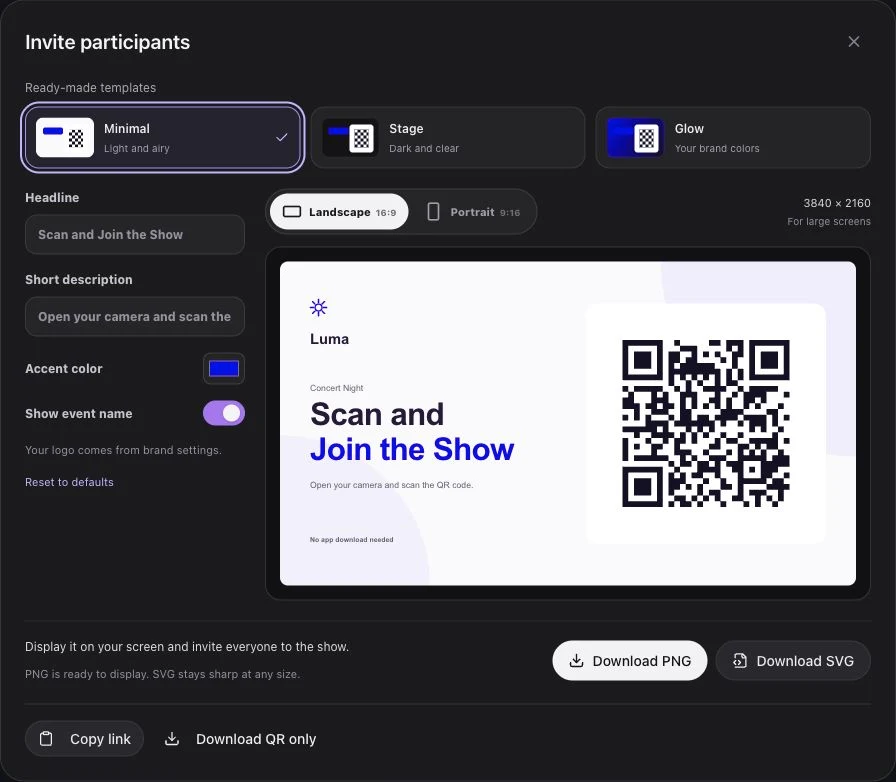
A ballpark video board competes with scores, player graphics, sponsor messages, and game information. Let the joining invitation be one identifiable screen, with a large code and a concise message.
Use “Scan. Join. Be part of the light show.” Place the event or team logo where it is easy to recognize, and leave visual space around the code. Test it from shaded seats, upper seating, and angled views rather than approving it only from the presentation booth.
Coordinate a short PA instruction that explains the next step: scan the code, tap Join, and keep the page open. The browser page is the participation tool. Fans do not need an app download or an account to join the Luma Crowd experience.
Show the invitation before the planned light moment and repeat it during an appropriate presentation gap. Fans can prepare through the same fixed QR before the event goes live. Read the QR code light show overview for a fuller explanation of the joining flow.
Prepare for phones being used in other ways
Spectators may be taking photos, messaging, or checking game information when the cue approaches. Tell them to return to the participant page before the show. Do not treat an earlier connection as proof that the phone is still ready in the foreground.
Browsers can throttle work in background pages, and a locked screen can make the page hidden. MDN's Page Visibility documentation explains those browser conditions. For this reason, include switching away, locking a phone, and returning to the page in the rehearsal rather than promising uninterrupted background playback.
Luma Crowd can use screen light when flashlight access is unavailable or camera permission is declined. Test this fallback alongside a flashlight-capable phone. Instructions should let fans participate with the available mode instead of telling everyone to enable a flashlight the browser may not control.
Keep the live cue under one operator's control
Create the event, add its music, and prepare the light sequence in Studio. Use local Preview to review edits without broadcasting to audience phones. Save the sequence before the presentation window opens.
Going live opens the audience session; it does not begin the lights. The operator presses Play after the show caller confirms the actual window. This separation is useful when a game delay changes the order of a theme-night program.
Write down the end action. Stop cancels playback and the queued flow but keeps the session open. Finish event closes the session and returns participants to waiting. If the presentation moves to another prepared event, finish the existing live session first: a customer account has one live event at a time.
Use a rehearsal checklist that matches the park
- Scan the displayed QR from representative seats, not just a printed proof.
- Join on different phone and browser combinations, including screen-light mode.
- Check the ready state while connected to the network fans will use.
- Confirm the PA invitation is understandable over the venue sound system.
- Run the agreed start cue and check the visual under the planned light conditions.
- Stop early and verify that the next item does not begin.
- End the session and confirm that participant phones return to waiting.
Ask the venue network team about expected coverage and loading in the relevant seating areas. A distributed rehearsal can reveal local problems, but it does not establish a guaranteed audience capacity. Use live connected and ready counts to support the operator's decision.
Build the next show from observed results
Record the actual light conditions, where the QR worked, when fans were asked to join, and which presentation handoffs needed clarification. Keep any account-level operational report distinct from claims about a particular game's attendance or sponsor response.
The stadium light show page provides the broader product overview. Compare this plan with college football game-day cues and basketball arena cues, or discuss a ballpark demo using the timing of your next night-game program.