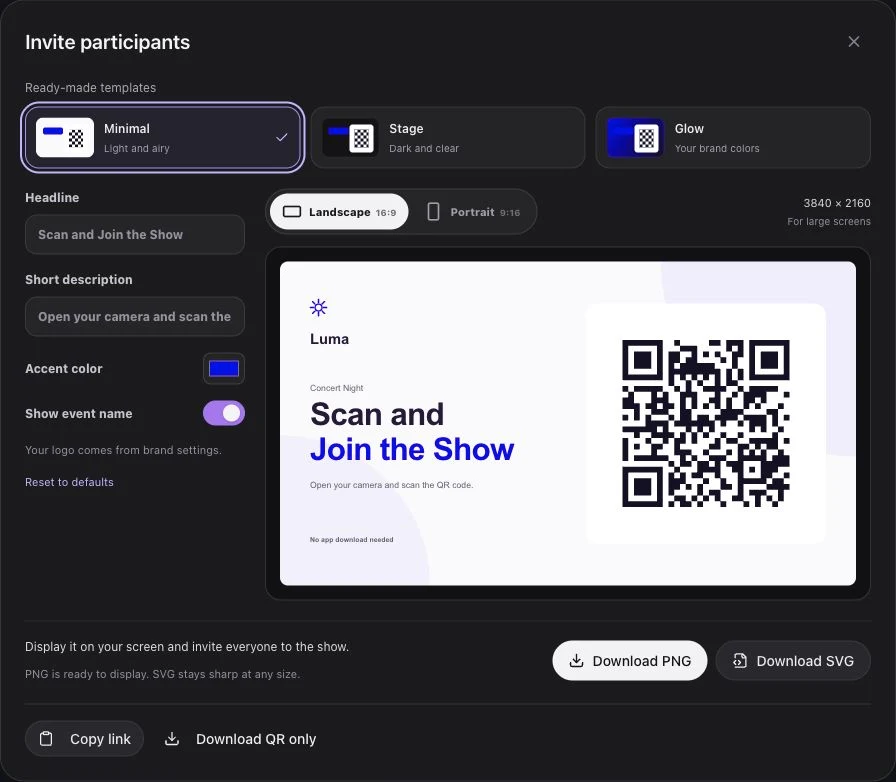
A college football phone light show works best when it belongs to a recognizable game-day moment: the team entrance, a homecoming welcome, or a short tribute. Pick that moment first. Then build the invitation, music, and control-room cue around it. Fans should know what to do before the countdown reaches the scoreboard.
This planning guide focuses on a browser-based crowd light experience. It does not assume that fans know the platform, that every phone supports flashlight control, or that the stadium network will behave the same way in every seating area.
Choose one cue the production team can own
Start with a planned window rather than a reaction to a play. A team entrance has a useful sequence: an invitation, a ready period, a cue from the show caller, and a defined end. A touchdown can arrive at any time and is less suitable for a first activation that still needs audience onboarding.
Write a one-sentence brief: “During the team entrance, joined fans hold up their phones for a school-color light sequence.” Name the person who calls the cue and the operator who starts playback. Confirm where the sequence hands back to the normal game presentation.
If the marching band, video board, or PA team is involved, agree on the audio source. Do not build a plan that relies on several operators independently pressing play at exactly the same instant. Rehearse their handoff and record the agreed order in the run of show.
Make the QR invitation readable from a seat
Give the QR code its own screen moment. A scoreboard graphic containing sponsor marks, player names, schedules, and a tiny QR code makes the joining task harder to recognize.
Use the event invitation design with a prominent code, the school or event logo, and a short instruction such as “Scan. Join. Light up game day.” Check it from a distant seating position using the actual board. Scanability depends on the display, viewing angle, distance, and phone camera; there is no single graphic size that proves readiness for every stadium.
Pair the graphic with a brief PA instruction:
“Scan the code on the screen, tap Join, and keep the page open. When the cue arrives, hold up your phone.”
The same QR can remain available before the live session starts. Prepared participants can wait on the page; they do not need a fresh code when the operator goes live. See the QR code light show overview for the joining flow.
Prepare an event, then rehearse locally
In Luma Crowd, create an event for the game-day moment and add the music to its flow. Open it in Studio to edit the light sequence and phone screen colors. Keep the first version short enough that the operator can understand its beginning, main moment, and finish at a glance.
Use Preview while editing. Preview runs on the operator's device and does not start a show on audience phones. Going live is a separate step, and opening the live session still does not start the lights. Play is the show cue.
Test audience phones as well as the editor. Luma Crowd asks for camera access after a participant taps Join and can use screen light if permission is declined or flashlight access is unavailable. Browser camera access requires permission and a secure context, as explained in MDN's camera API documentation. Include both flashlight and screen-light phones in the venue check.
A sample team-entrance handoff
Use this as a working order to adapt with the venue team, rather than a universal timing prescription.
| Stage | Show caller | Luma Crowd operator |
|---|---|---|
| Invitation | Calls for the QR graphic and PA instruction | Checks that the right event is selected |
| Audience preparation | Leaves a clear joining window | Watches connected and ready participants |
| Standby | Confirms the entrance sequence is ready | Opens the live session; does not press Play yet |
| Entrance cue | Gives the agreed start instruction | Plays the prepared item or flow |
| Handoff | Returns attention to the field | Stops playback or finishes the event as agreed |
Keep Stop available. It cancels playback and queued items while the session remains live. Finish event closes the session and returns participants to waiting. A rehearsal should cover both actions, not just the successful start.
Check the student section and the far seats
Use a small test group distributed across the seating areas relevant to the activation. Check the displayed QR, browser joining, ready state, light visibility, and reconnection. A successful phone beside the control-room computer does not establish conditions across the stands.
Invite student-section leaders to practice the instruction before game day. Their role is to demonstrate joining and holding up a phone, not to promise that every spectator device will connect. Treat connected and ready counts as operational signals; they are not a count of the entire stadium audience.
Use a restrained, recognizable palette. Phone screen colors can support school identity, but the crowd should not be described as a precisely mapped video display. Review the visual plan with the venue production team alongside its existing presentation procedures.
Leave a useful record for the next home game
After the activation, note where the invitation was displayed, which cue was used, any network or joining problems, and whether the operator handoff was clear. Keep these observations separate from account-level reports. A live participation count is not evidence of individual attention, ticket-holder identity, or sponsor impact.
For a broader venue plan, read the stadium light show guide. For another sports format, compare the cue structure in our basketball arena guide and ballpark planning guide. Talk through your game-day flow with Luma Crowd before choosing the final show moment.