Basketball game presentation moves quickly. A crowd light sequence must fit between the cue that starts it and the cue that returns attention to the court. For US arena presentation teams, the useful question is whether spectators are ready and the operator can end the moment cleanly.
A browser-based phone light show lets fans scan a QR code and join without downloading an app. The production team can prepare the sequence in advance, open a live session for waiting participants, and start playback on a separate show cue.
Decide between introductions and a timeout
Player introductions offer a planned sequence with a defined starting point. A timeout activation has a tighter dependency on the live game, other presentation elements, and the time available. Both can work, but they need different operating plans.
For introductions, build a single flow that supports the announced sequence. A slow build, team-color screen moment, and clear finish are easier to follow than an unrelated series of changing effects. Coordinate with the PA and video teams so the phone sequence supports their main cue.
For a timeout, keep a self-contained item ready. Confirm that the show caller has approved the window before playing it. If the window changes, leave participants waiting and skip the sequence. The phones do not need to start merely because the session is live.
Join fans before the game clock creates pressure
Use the pregame board rotation to introduce the experience. Show a large QR code with one action: “Scan and join the light show.” Follow it with the simple instruction to tap Join and keep the page open.
Fans who arrive after the first invitation need another clear opportunity to join. Repeat the graphic during a planned presentation gap instead of squeezing it into the same seconds used for the light effect. Test the code from the upper bowl and from seats with an angled view of the display.
Use the event logo and consistent language on the invitation and participant page. A familiar visual helps fans recognize that the browser page belongs to the arena activation. Avoid a second QR code for the actual cue: the fixed joining code allows prepared participants to wait for the live session.
The QR code light show overview explains this app-free flow. Camera access is requested after Join, and screen light is available when camera access or flashlight support is unavailable. The audience instruction should describe participation, not require one particular phone model.
Build a compact Studio flow
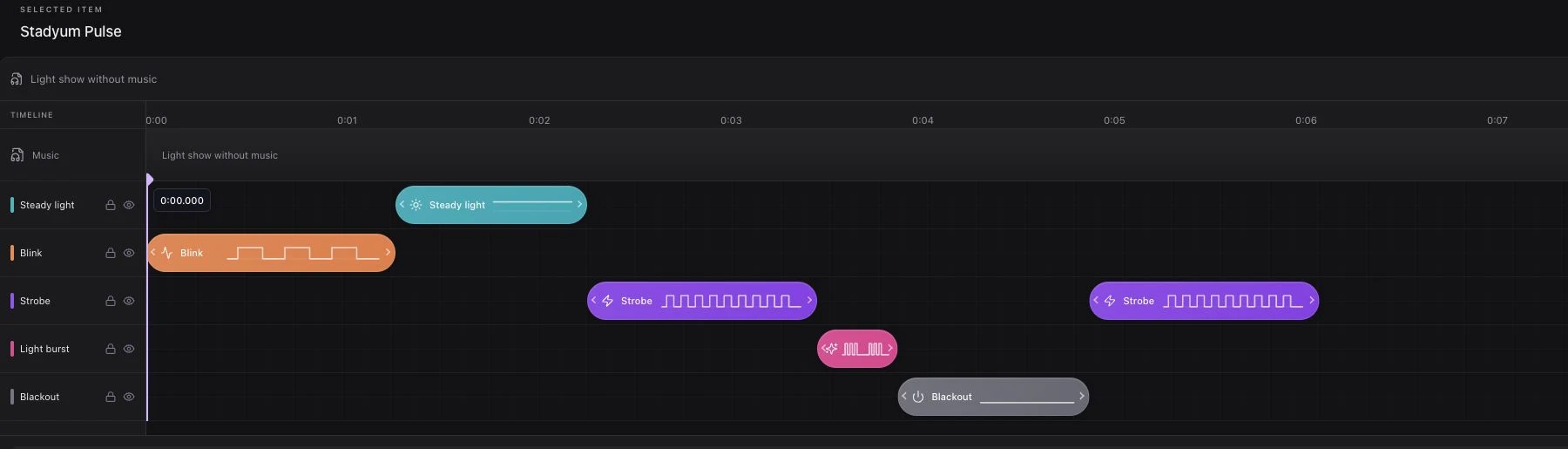
Name the event so the operator can distinguish it from other prepared shows. Add the music, order the items, and set the light and screen-color effects in Studio. Descriptive item titles such as “Introduction build” and “Final team-color hold” make the flow easier to read during a live production.
Preview edits on the operator's device. Local preview does not broadcast to participant phones. Complete the rehearsal and save the sequence before the live cue; changes made during playback apply to the next run, not the copy of the flow already playing.
Prepare one clear end rather than relying on the operator to notice that an effect has lingered. Also agree on an early-stop instruction with the show caller. Avoid using a full timeout window for the light sequence when that leaves no room for the next arena cue.
Put the controls into the run of show
The distinction between a live session and playing lights should appear in the operator notes. It prevents a readiness check from becoming an accidental start.
- Select the correct event in Studio and confirm the prepared flow.
- Display the invitation and give fans time to join.
- Check connected and ready participants without treating those counts as total attendance.
- Go live when the presentation team is ready to host the session.
- Wait for the show caller's instruction, then press Play.
- Use Stop if the presentation window ends early.
- Finish the event when the audience light activation is complete.
Stop leaves the session open, so another agreed cue can follow. Finish event closes it and returns the participant page to waiting. Because one customer account has one live event at a time, finish an existing session before switching a different prepared event live.
Rehearse an interruption, not only the ideal sequence
An arena rehearsal should include a phone joining late, a phone reconnecting, and an early Stop. Check flashlight and screen-light behavior from seating positions and from the camera view intended to capture the moment.
Confirm how the crew will communicate a cancellation. An operator should not have to infer it from a changed scoreboard graphic. Give the show caller and operator a shared verbal cue, and write down whether the instruction means stop playback or finish the session.
Do not refresh the operator page expecting the music to resume automatically. A refresh shows the live session state; it does not restart the show. Keep the next action deliberate.
Review the moment as a production cue
After the game, record whether the invitation was understandable, fans had enough joining time, the planned window was available, and the stop handoff worked. A phone connection is an operational observation, not proof that a sponsor message was noticed or remembered.
For a stadium-sized pregame sequence, see the college football game-day guide. For an outdoor window, read the baseball ballpark guide. The corporate event participation guide also covers speaker and brand-team handoffs. Explore stadium light shows or plan an arena demo around your actual introductions or timeout run of show.